

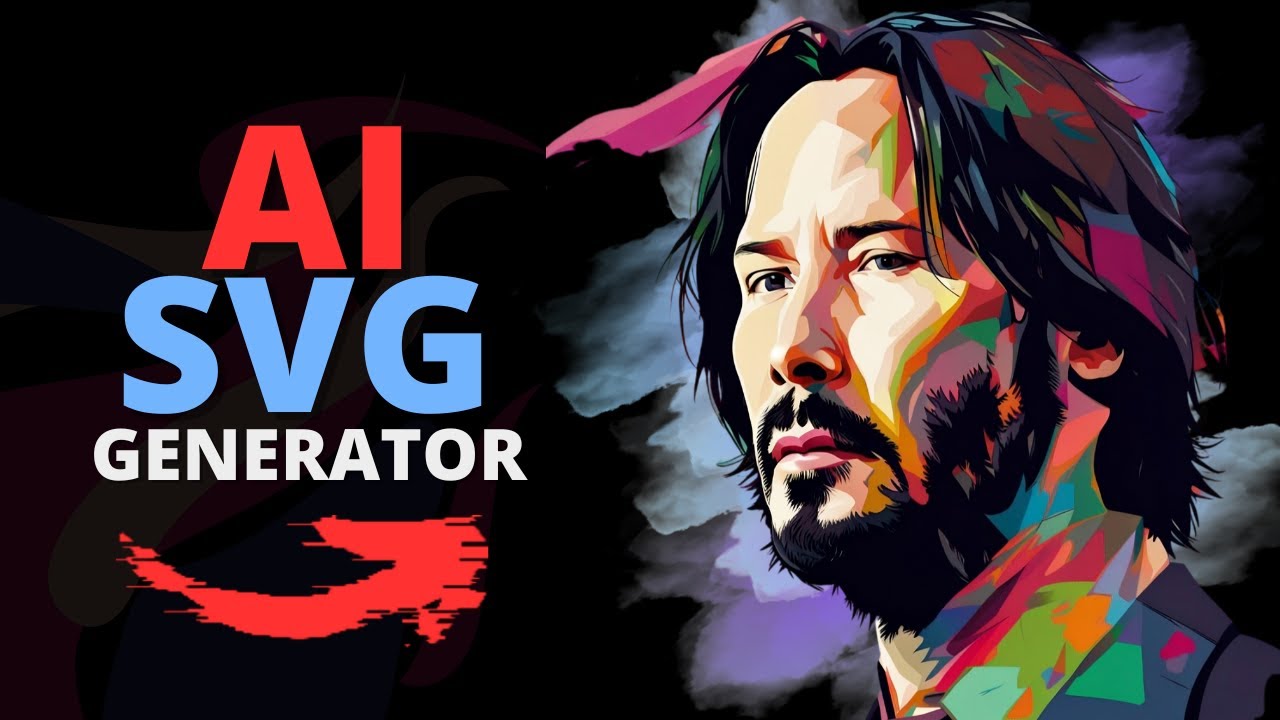
Turning a photograph into vector art sounds like a task reserved for skilled illustrators who spend hours recreating every detail by hand. AI has changed that equation significantly. Today, you can take a photograph, a portrait, a landscape, a product shot and convert it into stylized SVG vector art in a matter of minutes. The results are not perfect replicas of the photo; they are interpretations of it in a vector style. And for many use cases, custom stickers, laser cutting, apparel printing, web illustrations that interpret vector versions are exactly what you need.
This guide covers the full process: preparing your photo, choosing the right conversion approach, refining the output, and understanding where AI photo-to-SVG conversion works best.
Photos That Convert Well vs. Photos That Do Not
Understanding this distinction will save you frustration. These types of photos produce excellent SVG vector art:
- High-contrast subjects against simple backgrounds. A person photographed against a plain wall, a product on a white background, or an animal against an open sky, these all have clear subject boundaries that AI can detect reliably.
- Bold subjects with distinct color regions. Illustrations, stylized portraits, and images with naturally limited color palettes vectorize cleanly because there are clear boundaries between color areas.
- Architectural subjects and geometric scenes. Buildings, interiors, and architectural details convert well because they contain natural straight lines and geometric shapes that vector paths represent efficiently.
These types of photos are more challenging:
- Busy backgrounds. When a subject and its environment have similar tones and textures, the AI has difficulty determining what to prioritize and what to simplify.
- Fine textures. Grass, hair, fabric weave, and similar textures contain thousands of tiny detail variations that do not translate naturally to vector paths. The conversion will either oversimplify them or create extremely complex path data.
- Low-contrast images. Photos taken in flat lighting without clear shadows or highlights lack the tonal information that helps AI identify object boundaries.
Step 1: Prepare Your Photo
Good preparation dramatically improves conversion quality.
- Crop tightly to your subject. Remove unnecessary background before converting. If you are converting a portrait, crop to include just the person. This focuses the AI’s processing on what matters and reduces noise from irrelevant elements.
- Remove or simplify the background. Use a background removal tool to isolate your subject on a transparent or solid white background before converting. The cleaner the background, the cleaner the conversion.
- Adjust exposure and contrast. A well-exposed photo with solid contrast between light and dark areas gives the AI clear signals about where objects begin and end. Brighten underexposed images and increase contrast slightly if the photo looks flat.
- Choose the right resolution. You do not need a massive file for vectorization — AI tools work well with images around 1000-2000 pixels on the longest edge. Very large files slow processing without improving output quality.
Step 2: Select Your Conversion Style
AI photo-to-SVG tools typically offer multiple style options that control how the photo is interpreted:
- High detail / realistic. More color regions, more paths, more closely approximating the original photo’s tonal variation. Best for illustrations and images where detail matters.
- Low detail / simplified. Fewer colors, bolder shapes, more graphic and stylized. Best for sticker designs, apparel graphics, and situations where the vector will be used at various sizes.
- Silhouette. Pure black-and-white conversion with a single path representing the subject’s outline. Best for laser cutting, vinyl cutting, and embroidery.
- Flat illustration. The AI interprets the photo’s depth and lighting and renders it as a flat-color illustration. This style produces results that look hand-illustrated rather than obviously derived from a photo.
Experiment with multiple styles on the same photo. The style that looks best in a small preview may not be the best choice when the SVG is scaled up or used in its intended context.
Step 3: Run the Conversion and Evaluate
Upload your prepared photo and generate the SVG. Before accepting the result, evaluate it carefully at multiple zoom levels.
Look for: smooth edges (curves should flow naturally without jitter or staircasing), clean color separation (adjacent color regions should have clear boundaries, not blurry transitions), and appropriate simplification (fine detail that cannot convert cleanly should be simplified, not rendered as messy complex paths).
If the initial result is not satisfactory, adjust the settings. Most tools let you control the color count, detail level, and smoothing independently. Reducing the color count often improves clarity significantly going from 24 colors to 8 forces the algorithm to commit to cleaner boundaries.
Step 4: Refine the Output
Even a good automated conversion benefits from refinement.
- Simplify complex paths. Photographs converted to SVG often produce paths with hundreds of anchor points where a clean vector would use a fraction of that number. Use path simplification to reduce node count without visibly changing the shape.
- Merge adjacent same-color regions. The conversion process sometimes creates multiple separate paths in the same color that logically represent a single element. Merge these to simplify the file structure.
- Correct color values. Compare the converted SVG to the original photo and adjust any colors that shifted during conversion. For brand photography where specific color accuracy matters, this step is essential.
- Add or remove detail manually. Some conversions get the overall structure right but miss important details or include unnecessary complexity. Minor manual editing of the final SVG can elevate the result from acceptable to professional.
Use Cases Where Photo-to-SVG Conversion Shines
This workflow is particularly valuable for these applications:
- Custom stickers and merchandise. A portrait converted to flat-color vector art makes excellent custom sticker designs. The simplified style reads well at small sizes and prints cleanly.
- Laser cutting and vinyl cutting. These processes require clean vector paths. Converting a photo to a silhouette SVG gives you a cuttable template without manual tracing.
- Website illustrations. A product photo converted to a vector illustration style can create a distinctive visual identity for a brand’s website, standing out from the stock-photo-heavy look of typical sites.
- Apparel and embroidery. Vector art with a limited color count translates directly to screen printing separations or embroidery thread counts, making photo-to-SVG conversion a practical production workflow.
Conclusion
AI photo-to-SVG conversion is a genuinely useful capability that has moved well beyond novelty. With proper photo preparation and smart use of style settings, you can convert photographs into clean, professional vector art suitable for a wide range of production applications. SVGMaker brings together AI conversion, style controls, and post-conversion editing tools in one workflow, making it straightforward to go from a photograph to a finished SVG that is ready for whatever you need to do with it.
